> For the complete documentation index, see [llms.txt](https://reference-guide.gitbook.io/crm-back-office-user-guide-full/llms.txt). Markdown versions of documentation pages are available by appending `.md` to page URLs; this page is available as [Markdown](https://reference-guide.gitbook.io/crm-back-office-user-guide-full/17.-settings/client-portal-psp-settings/fireblocks-settings/application.md).
# Application
### Client Deposit via Fireblocks
To deposit funds via Fireblocks, your clients can follow these steps:
{% tabs %}
{% tab title="Step 1" %}
Navigate to the "Funds" section in their account and click on "Deposit".
{% endtab %}
{% tab title="Step 2" %}
1. Select "Fireblocks" as the deposit method.
2. Select the "Payment Currency".
3. Fill in the account to deposit funds into and the payment amount.
4. Click "Next".
{% endtab %}
{% tab title="Step 3" %}
1. If your client does not have an existing vault account, the CRM will automatically create one on Fireblocks, using the client's CRM ID as the account name.
2. A dedicated wallet address will be displayed. Your client can proceed to transfer the funds to this wallet.
3. Once the transfer is complete, click "Payment Completed".
{% endtab %}
{% tab title="Step 4" %}
1. Deposit via Fireblocks will need to be done within a 2 hours timeframe. Otherwise, the deposit request will be cancelled automatically.
2. Once payment is completed, a deposit request will be sent to you, and it will be either manually or automatically approved based on the approval settings configured by you.
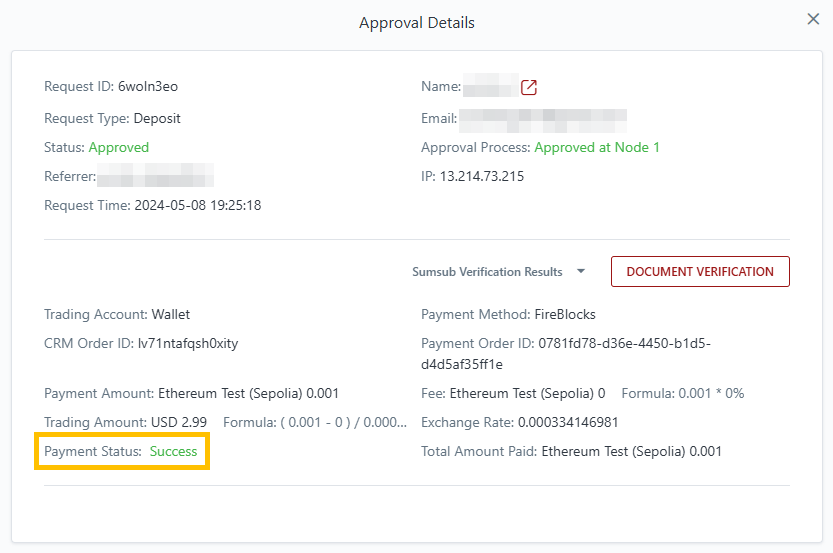
3. In the Approvals page of your CRM, you can easily monitor all deposits made via Fireblocks. The payment status will be reflected as follows:
* Success: This indicates that the callback for the deposit was successful, confirming a completed transaction.
* Failed: This status signifies that the callback for the deposit failed, indicating an unsuccessful transaction.
* Pending: If the callback for the deposit has not been received yet, the status will be shown as Pending, indicating that the transaction is still being processed.
{% endtab %}
{% endtabs %}
### Client Withdraw via Fireblocks
To withdraw funds via Fireblocks, your clients can follow these steps:
{% tabs %}
{% tab title="Step 1" %}
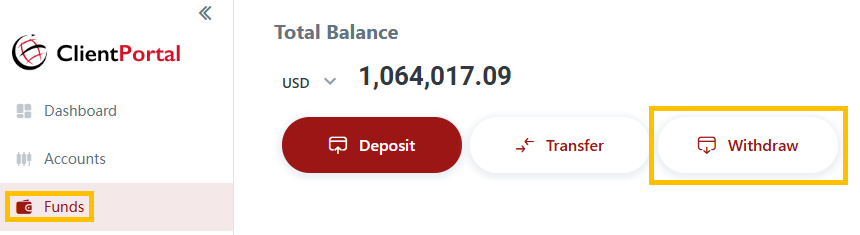
1. Navigate to Funds.
2. Click "Withdraw".
{% endtab %}
{% tab title="Step 2" %}
1. Fill in the respective fields on the withdrawal form.
* Fireblocks will whitelist your client's wallet address.
* Each client canonly have one wallet address per asset.
* For first-time withdrawals via Fireblocks, clients will need to provide their wallet address, which will then be automatically whitelisted and assigned in Fireblocks.
* For subsequent withdrawals, the whitelisted wallet address for the asset will be automatically filled in.
2. Click "Submit".
{% endtab %}
{% tab title="Step 3" %}
1. Your client will be redirected to the transaction history page where they can view the status of their request.
2. The withdrawal request will be sent to you for review.
* If you have not set up multi-level approval, upon your approval, the funds will be deducted from the client's trading account or wallet, and the funds from your withdrawal vault account will be sent to the client's wallet address.
* If you have set up multi-level approval according to the security checklist, upon first-level approval, the funds will be deducted from the client's trading account or wallet. The funding status will reflect "Withdrawn".
* Upon second-level approval, the funds from your withdrawal vault account will be sent to the client's wallet address.
{% endtab %}
{% endtabs %}