# 15. Go Live

As your business enters the live operational phase, it becomes crucial to institute continuous monitoring, actively assess client requests, and conduct thorough data analysis. In this section, we will provide a step-by-step walkthrough outlining the actions required when your business goes live, and you secure your first client.&#x20;

<details>

<summary>1) Account Registration</summary>

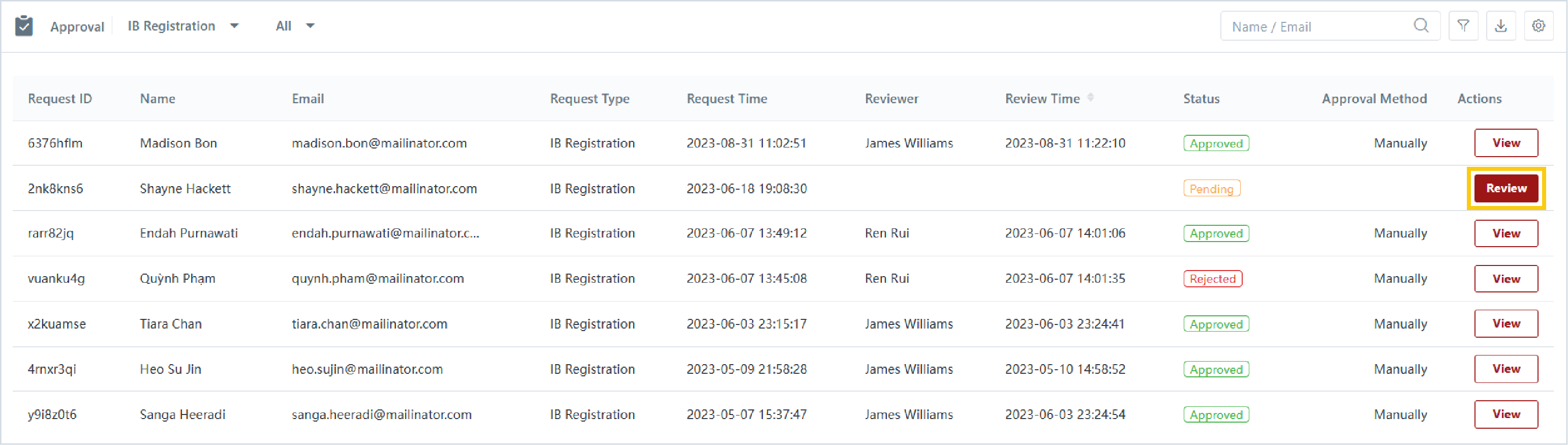
1. After your client completes the account registration process, you can locate the request under via Approvals > Trader Registration or IB Registration. <br>

   <figure><img src="https://489269767-files.gitbook.io/~/files/v0/b/gitbook-x-prod.appspot.com/o/spaces%2FVWBlbPg7sM6ADA13bB4T%2Fuploads%2FX0oOEXVCJjDZK06qbW54%2Fimage.png?alt=media&#x26;token=a4cf38d7-e957-47a2-a74f-2ec3ac46fe59" alt=""><figcaption></figcaption></figure>
2. If your approval settings are configured as automatic, no further action is necessary at this stage. The client will gain immediate access to their CRM account upon successful registration.<br>
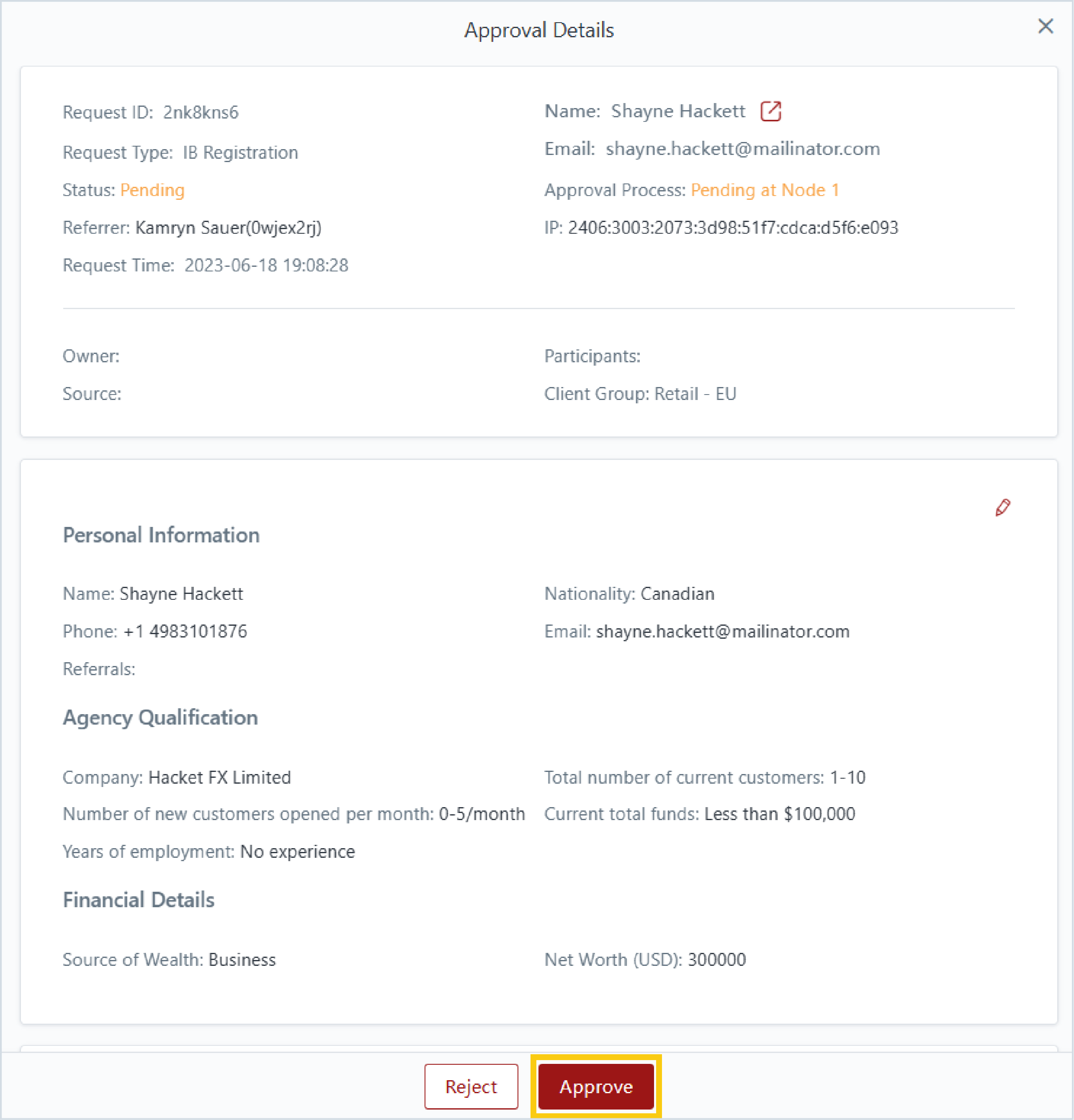
3. In the case of manual approval settings for registration, you will need to review the client's request before they can login to the CRM.&#x20;
   * Locate the request and click "Review". <br>

     <figure><img src="https://489269767-files.gitbook.io/~/files/v0/b/gitbook-x-prod.appspot.com/o/spaces%2FVWBlbPg7sM6ADA13bB4T%2Fuploads%2FkhYvtjPnQkF3Kz8VTyrQ%2Fimage.png?alt=media&#x26;token=62dc6e51-92ea-4529-8783-ee540d843975" alt=""><figcaption></figcaption></figure>
   * Click "Approve".<br>

     <figure><img src="https://489269767-files.gitbook.io/~/files/v0/b/gitbook-x-prod.appspot.com/o/spaces%2FVWBlbPg7sM6ADA13bB4T%2Fuploads%2FpinU9qSJcZEejoPz1yOL%2Fimage.png?alt=media&#x26;token=62496d54-ede1-42c0-a36d-544139b0d422" alt=""><figcaption></figcaption></figure>

</details>

<details>

<summary>2) KYC Submission</summary>

1. Depending on your KYC process (as mentioned here: [#1-kyc-configuration](https://reference-guide.gitbook.io/how-to-setup-your-prop-broker/3.-client-onboarding-process/kyc-policies#1-kyc-configuration "mention"), your client may need to complete KYC before they can proceed to deposit or trade. <br>
2. Once your client has submitted their KYC request, you will be able to view it via Approvals > KYC. <br>

   <figure><img src="https://489269767-files.gitbook.io/~/files/v0/b/gitbook-x-prod.appspot.com/o/spaces%2FVWBlbPg7sM6ADA13bB4T%2Fuploads%2F4CVVXSJ68wjeG4KwPhzC%2Fimage.png?alt=media&#x26;token=4cf41cd1-11eb-4538-a134-d48b43f028b3" alt=""><figcaption></figcaption></figure>
3. If your KYC approval settings are set to automatic, no additional action is needed. Clients automatically pass KYC upon submitting the request. <br>
4. In the case of manual approval settings:&#x20;
   * Locate the KYC request and click "Review". <br>

     <figure><img src="https://489269767-files.gitbook.io/~/files/v0/b/gitbook-x-prod.appspot.com/o/spaces%2FVWBlbPg7sM6ADA13bB4T%2Fuploads%2FeuBMGTSx2ae3Yng9dK4w%2Fimage.png?alt=media&#x26;token=69adce8b-01f5-4f4b-9a5c-6bee05f391f9" alt=""><figcaption></figcaption></figure>
   * Conduct client due diligence checks as per your KYC policies. <br>
   * Click "Approve". <br>

     <figure><img src="https://489269767-files.gitbook.io/~/files/v0/b/gitbook-x-prod.appspot.com/o/spaces%2FVWBlbPg7sM6ADA13bB4T%2Fuploads%2FE38JCIyxaHhdDZgu7io0%2Fimage.png?alt=media&#x26;token=30d69f2d-4edc-4697-88c6-0c90137c4ae7" alt=""><figcaption></figcaption></figure>
5. Upon approval, the client's KYC has been passed, granting them permission to proceed to deposit or trade.&#x20;

</details>

<details>

<summary>3) Deposit Request</summary>

1. If your prop challenge fee payment method is via deduction from account balance or wallet, clients must ensure they deposit sufficient funds. <br>
2. Clients can submit a deposit request into their CRM wallet. <br>
3. Depending on the selected deposit method and the configured approval settings, you may need to review deposit requests under Approvals > Deposit. <br>

   <figure><img src="https://489269767-files.gitbook.io/~/files/v0/b/gitbook-x-prod.appspot.com/o/spaces%2FVWBlbPg7sM6ADA13bB4T%2Fuploads%2FdzMGCm7aRFyclFtwL6d1%2Fimage.png?alt=media&#x26;token=5cf365da-f520-4b9b-a501-a9a66a015a14" alt=""><figcaption></figcaption></figure>
4. If manual approval is required:&#x20;
   * Locate the deposit request and click "Review". <br>

     <figure><img src="https://489269767-files.gitbook.io/~/files/v0/b/gitbook-x-prod.appspot.com/o/spaces%2FVWBlbPg7sM6ADA13bB4T%2Fuploads%2F0RRLROldL22S2jeJtmSD%2Fimage.png?alt=media&#x26;token=a98b6d6c-ae49-4f94-9ad9-4cd6f54d9975" alt=""><figcaption></figcaption></figure>
   * Verify receipt of funds on your end. <br>
   * Approve the deposit request. <br>

     <figure><img src="https://489269767-files.gitbook.io/~/files/v0/b/gitbook-x-prod.appspot.com/o/spaces%2FVWBlbPg7sM6ADA13bB4T%2Fuploads%2F8i3tsAy7AlkpfEMTs9Tu%2Fimage.png?alt=media&#x26;token=d31feaa7-1465-4f96-9da4-38e716a99cae" alt=""><figcaption></figcaption></figure>
5. The approved deposit amount will be deposited into the client's CRM wallet automatically. <br>
6. You can track the deposit transaction through Reports > CRM Reports > Transactions. <br>

   <figure><img src="https://489269767-files.gitbook.io/~/files/v0/b/gitbook-x-prod.appspot.com/o/spaces%2FVWBlbPg7sM6ADA13bB4T%2Fuploads%2FZCPILinzbV7HiXeWlXO8%2Fimage.png?alt=media&#x26;token=4041d5c5-48c2-46ef-b5cb-f6a78c3d378e" alt=""><figcaption></figcaption></figure>

</details>

<details>

<summary>4) Prop Trading Participation</summary>

1. Depending on your configured approval setting, Prop Trading Participation requests may require your review. <br>
2. If set to automatic approval, no intervention is necessary. Your clients will receive their prop trading account credentials instantly, enabling them to commence trading. <br>
3. For manual approval settings, navigate to Approval > Prop Trading Participation to review requests.
   * Locate the request for review and click "Review". <br>

     <figure><img src="https://489269767-files.gitbook.io/~/files/v0/b/gitbook-x-prod.appspot.com/o/spaces%2FVWBlbPg7sM6ADA13bB4T%2Fuploads%2FBLWaNzGqK7ApAvjfebu1%2Fimage.png?alt=media&#x26;token=a4e95cad-1552-4a99-b075-c17f12302e8a" alt=""><figcaption></figcaption></figure>
   * Verify client details and confirm payment of the registration fee (if applicable).&#x20;
   * Click "Approve". <br>

     <figure><img src="https://489269767-files.gitbook.io/~/files/v0/b/gitbook-x-prod.appspot.com/o/spaces%2FVWBlbPg7sM6ADA13bB4T%2Fuploads%2FkBeFYJrWOH9VOUDqnPsZ%2Fimage.png?alt=media&#x26;token=eb74e132-8b1c-49ce-8eb8-4a0f6e14f276" alt=""><figcaption></figcaption></figure>
   * Upon approval, clients will be able to access their prop trading account credentials via the CRM Client Portal and start trading. <br>
4. You can monitor the registration fee collected for prop trading challenges via Reports > CRM Reports > Transactions.&#x20;
   * Filter the report by type and select "Prop Trading Fee". <br>

     <div align="left"><figure><img src="https://489269767-files.gitbook.io/~/files/v0/b/gitbook-x-prod.appspot.com/o/spaces%2FVWBlbPg7sM6ADA13bB4T%2Fuploads%2FrylDwTF2zV6jVjDfCAxb%2Fimage.png?alt=media&#x26;token=c0540bca-51c9-4253-b9d1-ab3730ed9d4a" alt="" width="375"><figcaption></figcaption></figure></div>
   * The report will display all registration fees paid by clients. <br>

     <figure><img src="https://489269767-files.gitbook.io/~/files/v0/b/gitbook-x-prod.appspot.com/o/spaces%2FVWBlbPg7sM6ADA13bB4T%2Fuploads%2Flr4ftXQru1gZEu5dmYvE%2Fimage.png?alt=media&#x26;token=2e8b9e59-4f55-4401-acdc-6d0df78fb37d" alt=""><figcaption></figcaption></figure>

</details>

<details>

<summary>5) Prop Trading Challenge Status</summary>

1. You can monitor the participants and their respective statuses in prop challenges by navigating to Prop Trading > Participants. <br>

   <figure><img src="https://489269767-files.gitbook.io/~/files/v0/b/gitbook-x-prod.appspot.com/o/spaces%2FVWBlbPg7sM6ADA13bB4T%2Fuploads%2FnASUEoVvDT0fwNi0exEB%2Fimage.png?alt=media&#x26;token=031524c9-1046-499d-9516-934b6509daef" alt=""><figcaption></figcaption></figure>
2. This will provide you with a comprehensive overview of each trader's performance.&#x20;

</details>

<details>

<summary>6) Prop Trading Live Step</summary>

1. If your client manages to reach the live stage of the prop challenge, you may need to review their progression to the live step, depending on the approval settings configured. <br>
2. If set to automatic approval, no manual intervention is necessary. Your client can transition to the live stage and access their live trading account credentials automatically. <br>
3. For manual approval settings, you will need to review the request via Approvals > Prop Trading Live Step. <br>

   <figure><img src="https://489269767-files.gitbook.io/~/files/v0/b/gitbook-x-prod.appspot.com/o/spaces%2FVWBlbPg7sM6ADA13bB4T%2Fuploads%2FhojnPo5EbGQ1BUztymKi%2Fimage.png?alt=media&#x26;token=38dd303c-ae94-4abe-a64e-fb5c07eb2876" alt=""><figcaption></figcaption></figure>
4. Upon approval, your clients will be able to view their live trading account credentials via the CRM Client Portal and can proceed to trade in the live environment.&#x20;

</details>