# Promo Codes

### <mark style="color:red;">1. Creation of Promo Codes</mark>

{% stepper %}
{% step %}

#### Create Promo Codes

1. Click "Create Promo Code".<br>

   <figure><img src="https://489269767-files.gitbook.io/~/files/v0/b/gitbook-x-prod.appspot.com/o/spaces%2FVWBlbPg7sM6ADA13bB4T%2Fuploads%2F9tRGb82iFqCENYKmRxlC%2Fimage.png?alt=media&#x26;token=434dae0b-9e5a-49cf-a878-2a27779de8b4" alt=""><figcaption></figcaption></figure>

{% endstep %}

{% step %}

#### Fill in Required Fields

1. Fill in the Promo Code and Promo Code Name.
2. Select the Use Case Scenario. Currently, the only available option is Prop Trading.
3. Choose the Discount Method and enter the appropriate value:
   * Fixed Amount
   * Percentage
4. The Distribution Method is set as "Notification" by default and cannot be changed.
5. Set the Use Count Per Client:
   * Unlimited (Within Validity Period): Clients can redeem the promo code an unlimited number of times within the validity period.
   * Fixed Use Count: Specify the number of times the promo code can be redeemed.
6. Select "Allow Combined Use with Coupons":
   * This enables clients to stack promo codes with coupons.
7. Set the Validity Period:
   * Fixed Period: Specify the start and end dates.
   * Unlimited: The promo code will have no expiration.
8. Click Save to finalize the settings.<br>

   <figure><img src="https://489269767-files.gitbook.io/~/files/v0/b/gitbook-x-prod.appspot.com/o/spaces%2FVWBlbPg7sM6ADA13bB4T%2Fuploads%2F3ppdHjK9qFpYHQdtBuwj%2Fimage.png?alt=media&#x26;token=814ffdca-eee6-4f09-89c4-3727ecf0c4c6" alt="" width="476"><figcaption></figcaption></figure>

{% endstep %}

{% step %}

#### Enable Promo Code

1. Once the promo code has been created, the status will indicate "Not enabled".
2. To enable it, click "Enable".<br>

   <figure><img src="https://489269767-files.gitbook.io/~/files/v0/b/gitbook-x-prod.appspot.com/o/spaces%2FVWBlbPg7sM6ADA13bB4T%2Fuploads%2F4vCTTBg2FO1zo35QmPG1%2Fimage.png?alt=media&#x26;token=296610df-3dd1-4330-915a-ea4dd865cc94" alt=""><figcaption></figcaption></figure>
3. Once enabled, the status will display as "Enabled," allowing anyone with the promo code to redeem it.<br>

   <figure><img src="https://489269767-files.gitbook.io/~/files/v0/b/gitbook-x-prod.appspot.com/o/spaces%2FVWBlbPg7sM6ADA13bB4T%2Fuploads%2FlgDeuPvqFIddr6sWRZjx%2Fimage.png?alt=media&#x26;token=2f0bfdfb-dbce-46bc-aede-b3c4611fc60f" alt=""><figcaption></figcaption></figure>

{% endstep %}
{% endstepper %}

### <mark style="color:red;">2. Notification Tool</mark>

Once you have enabled the Promo Code, you can proceed to notify your clients. To do so, follow these steps:

{% stepper %}
{% step %}

#### Locate Promo Code to Notify&#x20;

1. Locate the Promo Code you wish to notify your clients of.
2. Click the "Notify" icon.<br>

   <figure><img src="https://489269767-files.gitbook.io/~/files/v0/b/gitbook-x-prod.appspot.com/o/spaces%2FVWBlbPg7sM6ADA13bB4T%2Fuploads%2F82aFoqnJJ5wXpQ6VlhDm%2Fimage.png?alt=media&#x26;token=44427f0a-9cec-4736-a0f9-9a354056fba3" alt=""><figcaption></figcaption></figure>

{% endstep %}

{% step %}

#### Configure Notification Settings

1. Select the clients or client group you wish to notify.
2. Choose your preferred notification method:
   1. Email
   2. Pop-Up
3. Click "Notify".\
   \
   ![](https://489269767-files.gitbook.io/~/files/v0/b/gitbook-x-prod.appspot.com/o/spaces%2FVWBlbPg7sM6ADA13bB4T%2Fuploads%2FcUcZLhoxj5lBAcjbvTk5%2Fimage.png?alt=media\&token=d02c983c-466f-462c-ad96-6db17a79353a)
4. Your clients will be notified of the promo code via the notification method selected.
5. You can continue to use the "Notify" function to inform more clients or client groups as needed.
   {% endstep %}
   {% endstepper %}

### <mark style="color:red;">3. Viewing or Editing Promo Codes</mark>

Once a Promo Code has been created, you can view or edit its settings.

{% hint style="info" %}
Please note that after the Promo Code has been enabled, further amendments to the promo code settings will no longer be possible.
{% endhint %}

To view or edit your Promo Code, follow these steps:

{% stepper %}
{% step %}

#### Locate Promo Code to View or Edit

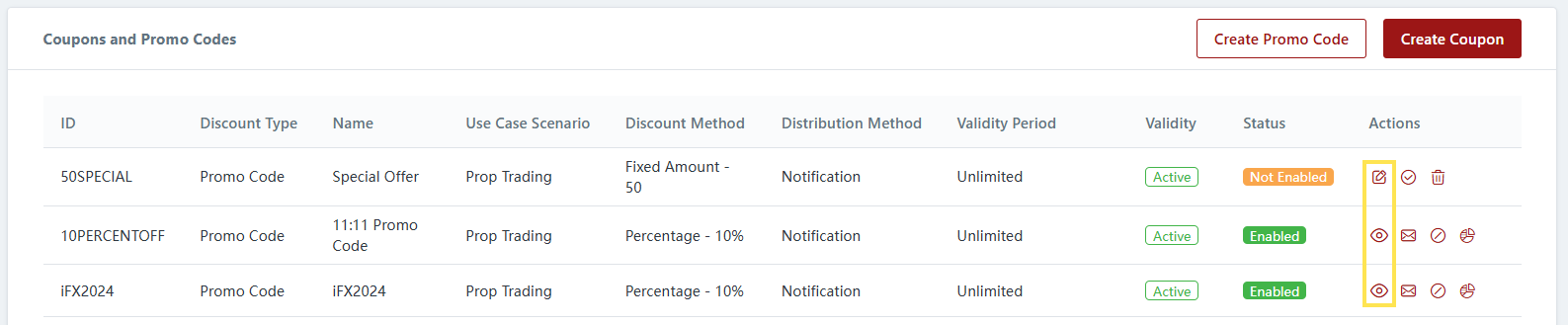
1. Locate the Promo Code you wish to view or edit.
2. Click the "View" or "Edit" icon. For enabled Promo Codes, the icon will display as "View", while for Promo Codes not enabled, it will display as "Edit".<br>

   <figure><img src="https://489269767-files.gitbook.io/~/files/v0/b/gitbook-x-prod.appspot.com/o/spaces%2FVWBlbPg7sM6ADA13bB4T%2Fuploads%2FNvhunT4HC5ho96T7ug2t%2Fimage.png?alt=media&#x26;token=daaebddc-c588-4a65-b480-109e242cccca" alt=""><figcaption></figcaption></figure>

{% endstep %}

{% step %}

#### View or Edit Promo Code

1. Clicking the "View" icon will allow you to review the Promo Code settings.\
   \
   ![](https://489269767-files.gitbook.io/~/files/v0/b/gitbook-x-prod.appspot.com/o/spaces%2FVWBlbPg7sM6ADA13bB4T%2Fuploads%2Fq8uLf6nHTZa82p6yjKWj%2Fimage.png?alt=media\&token=6fee78fc-6f2e-4efa-974a-617788a94b01)<br>
2. Clicking the "Edit" icon will enable you to modify the configuration. Once edits are made, click "Save" to apply the changes.\
   \
   ![](https://489269767-files.gitbook.io/~/files/v0/b/gitbook-x-prod.appspot.com/o/spaces%2FVWBlbPg7sM6ADA13bB4T%2Fuploads%2FDPsbwaQYqT3Z7HOSAwl0%2Fimage.png?alt=media\&token=7adbecc3-3644-472c-a207-7385bc594ebd)<br>
   {% endstep %}
   {% endstepper %}

### <mark style="color:red;">4. Delete Promo Codes</mark>

You can also delete Promo Codes that are not yet enabled or have been disabled.

{% hint style="info" %}
Please note that enabled Promo Codes cannot be deleted.
{% endhint %}

To delete a Promo Code, follow these steps:

{% stepper %}
{% step %}

#### Locate Promo Code to Delete

1. Locate the Promo Code you wish to delete.
2. Click the "Delete" icon. For Promo Codes that have been enabled, the "Delete" icon will not be displayed.<br>

   <figure><img src="https://489269767-files.gitbook.io/~/files/v0/b/gitbook-x-prod.appspot.com/o/spaces%2FVWBlbPg7sM6ADA13bB4T%2Fuploads%2FTMmFkaA9sU68GkPJ2KMC%2Fimage.png?alt=media&#x26;token=02c40859-b605-4159-b966-7f42bc403500" alt=""><figcaption></figcaption></figure>

{% endstep %}

{% step %}

#### Confirm Your Action

1. A confirmation popup will appear.
2. Click "Confirm" to proceed with the deletion.\
   \
   ![](https://489269767-files.gitbook.io/~/files/v0/b/gitbook-x-prod.appspot.com/o/spaces%2FVWBlbPg7sM6ADA13bB4T%2Fuploads%2Fo4JkOnqxUctMJbi2eEBf%2Fimage.png?alt=media\&token=616da8c1-41bb-4411-b0ef-c87037ce10ed)
   {% endstep %}
   {% endstepper %}

### <mark style="color:red;">5. Disabling Promo Codes</mark>

You can maintain control by disabling Promo Codes that may have been setup incorrectly or need to be withdrawn for any reason.

To disable a Promo Code, follow these steps:

{% stepper %}
{% step %}

#### Locate Promo Code to Disable

1. Locate the Promo Code you wish to disable.
2. Click the "Disable" icon.<br>

   <figure><img src="https://489269767-files.gitbook.io/~/files/v0/b/gitbook-x-prod.appspot.com/o/spaces%2FVWBlbPg7sM6ADA13bB4T%2Fuploads%2FEobnip2g1FuD35JasHfI%2Fimage.png?alt=media&#x26;token=9b5c6809-a6b1-4141-962a-7105497f95c9" alt=""><figcaption></figcaption></figure>

{% endstep %}

{% step %}

#### Confirm Your Action

1. A confirmation popup will appear.
2. Click "Confirm" to proceed to disable the Promo Code.\
   \
   ![](https://489269767-files.gitbook.io/~/files/v0/b/gitbook-x-prod.appspot.com/o/spaces%2FVWBlbPg7sM6ADA13bB4T%2Fuploads%2FeWSvPO8lQfbPbS3WSX9q%2Fimage.png?alt=media\&token=4a9bc5ed-2fb8-4b5a-a014-851f71c4afc1)<br>
3. Once disabled, the validity status will display "Inactive", and the status will display "Disabled". The Promo Code can no longer be used.<br>

   <figure><img src="https://489269767-files.gitbook.io/~/files/v0/b/gitbook-x-prod.appspot.com/o/spaces%2FVWBlbPg7sM6ADA13bB4T%2Fuploads%2FT2LZ5ZSzHkpQEerChLH5%2Fimage.png?alt=media&#x26;token=d898ea1b-9213-44ff-ba2f-9a3e42881a32" alt=""><figcaption></figcaption></figure>

{% endstep %}
{% endstepper %}

### <mark style="color:red;">6. Promo Code Statistics</mark>

You can view the Promo Code Statistics for enabled Promo Codes by clicking the "Statistics" icon.

<figure><img src="https://489269767-files.gitbook.io/~/files/v0/b/gitbook-x-prod.appspot.com/o/spaces%2FVWBlbPg7sM6ADA13bB4T%2Fuploads%2FJnPwtm6F1ebiXGaFU1zA%2Fimage.png?alt=media&#x26;token=67b51444-fdd7-400d-ba5c-8d75e2f4275f" alt=""><figcaption></figcaption></figure>

In the Promo Code Statistics dashboard, you will be able to view the following:

1. **Total Redeemed**: Indicates the total number of times the promo code has been redeemed. If a client has used the promo code twice, this count will show as 2.
2. **Number of Clients**: Displays the number of unique clients who have used the promo code. If a single client has redeemed the promo code multiple times, it will still count as 1.
3. **Client List:** A detailed list of clients who have received the promo code, along with the status of each promo code. Furthermore, you can click the "View" icon to see which Prop Challenge the promo code was used for.<br>

   <figure><img src="https://489269767-files.gitbook.io/~/files/v0/b/gitbook-x-prod.appspot.com/o/spaces%2FVWBlbPg7sM6ADA13bB4T%2Fuploads%2FkUv24ZkIDDmexF0S3rkg%2Fimage.png?alt=media&#x26;token=11b932a2-3b8a-4b75-bb88-048830a897ab" alt=""><figcaption></figcaption></figure>

### <mark style="color:red;">7. Application - Redeeming Promo Codes</mark>

1. Once a promo code is activated, any client who knows the code can redeem it.
2. When clients are notified about the promo code, they will receive an email or a pop-up notification, depending on the selected method.
   1. For pop-up notifications, a message will appear on the client portal.

      <figure><img src="https://reference-guide.gitbook.io/~gitbook/image?url=https%3A%2F%2F2882407036-files.gitbook.io%2F%7E%2Ffiles%2Fv0%2Fb%2Fgitbook-x-prod.appspot.com%2Fo%2Fspaces%252FtcPc3eNiDR0XV3sykf6H%252Fuploads%252FaYEjhN01MBkTVxyAFZYa%252Fimage.png%3Falt%3Dmedia%26token%3Dc7fd955c-b73c-4102-9bad-a287e59ab591&#x26;width=768&#x26;dpr=4&#x26;quality=100&#x26;sign=7d34fae3&#x26;sv=2" alt=""><figcaption></figcaption></figure>
   2. Clients can click "Learn More," which will redirect them to the notifications page where they can view the promo code.

      <figure><img src="https://reference-guide.gitbook.io/~gitbook/image?url=https%3A%2F%2F2882407036-files.gitbook.io%2F%7E%2Ffiles%2Fv0%2Fb%2Fgitbook-x-prod.appspot.com%2Fo%2Fspaces%252FtcPc3eNiDR0XV3sykf6H%252Fuploads%252FrmqBG3qsAwqSV9l2JQpn%252Fimage.png%3Falt%3Dmedia%26token%3D3f72fa9e-8410-43c3-813f-e6ee47838ae1&#x26;width=768&#x26;dpr=4&#x26;quality=100&#x26;sign=7712067f&#x26;sv=2" alt=""><figcaption></figcaption></figure>
3. To redeem the promo code, clients must enter it during the Prop Challenge checkout on the payment page and click "Apply". The discount will be applied automatically, and the client can proceed to purchase.

   <figure><img src="https://reference-guide.gitbook.io/~gitbook/image?url=https%3A%2F%2F2882407036-files.gitbook.io%2F%7E%2Ffiles%2Fv0%2Fb%2Fgitbook-x-prod.appspot.com%2Fo%2Fspaces%252FtcPc3eNiDR0XV3sykf6H%252Fuploads%252Fd2GObQE7GqJRe7JzjUJg%252Fimage.png%3Falt%3Dmedia%26token%3D480c4f11-aed4-4c05-897d-40534c2db9f4&#x26;width=768&#x26;dpr=4&#x26;quality=100&#x26;sign=97142de2&#x26;sv=2" alt=""><figcaption></figcaption></figure>
4. If clients do not redeem the promo code immediately, they can still access the notifications page to view past notifications and retrieve promo codes.<br>

   <figure><img src="https://489269767-files.gitbook.io/~/files/v0/b/gitbook-x-prod.appspot.com/o/spaces%2FVWBlbPg7sM6ADA13bB4T%2Fuploads%2FcCINBBmD63EdBjGMtbLO%2Fimage.png?alt=media&#x26;token=4ef677bb-5eac-4815-9b5f-682dc64a379f" alt=""><figcaption></figcaption></figure>