> For the complete documentation index, see [llms.txt](https://reference-guide.gitbook.io/prop-trading-version-release-notes/llms.txt). Markdown versions of documentation pages are available by appending `.md` to page URLs; this page is available as [Markdown](https://reference-guide.gitbook.io/prop-trading-version-release-notes/v7.45.0-screen-smarter-scale-faster-with-enhanced-prop-challenge-controls.md).
# V7.45.0 – Screen Smarter, Scale Faster with Enhanced Prop Challenge Controls
Stay ahead with our latest Prop Trading System updates—discover all the new features here!
**Released Date - 4 June 2025**
This release brings targeted enhancements to the Prop Trading module—giving you sharper control over trader evaluation, risk management, and commission logic. Manually promote standout traders, enforce stricter per-trade risk limits, and align IB commissions with discounted participation fees—enabling you to safeguard your business interests at every stage. Whether you're running a promotion or fine-tuning risk criteria, these updates help you stay agile without compromising your evaluation standards.
### Key Function Highlights
1. [**Manual Trader Advancement**](#id-1-manual-trader-advancement)**:** Manually promote traders to the next stage when exceptions arise—perfect for handling edge cases, disputes, or fast-tracking high-potential candidates. Enjoy added flexibility without changing your core evaluation framework.
2. [**New "Max Loss Per Closed Trade" Criterion**](#id-2-new-max-loss-per-closed-trade-criterion)**:** Introduce a per-trade loss limit to your challenge rules. Traders who exceed this threshold on any single closed trade will automatically fail the challenge, helping you manage high-risk behaviour with more granularity.
3. [**Commissions Based on Discounted Fees**](#id-3-commissions-based-on-discounted-fees): IB commissions can now be calculated from discounted participation fees, allowing for more accurate payouts during promotions or when using custom pricing.
### **1) Manual Trader Advancement**
You can now manually promote traders to the next stage when exceptions arise—perfect for handling edge cases, disputes, or fast-tracking high-potential candidates. Enjoy added flexibility without changing your core evaluation framework.
To advance traders, you will need to assign the respective permission:
* Manual Advancement - Provides rights to advance a trader to the next prop challenge stage.
1. Only traders currently **"In Progress"** are eligible for manual advancement. Those who have already passed or failed cannot be advanced.
2. If there are **open positions**, the advancement cannot be performed until those positions are closed.
To advance a trader to the next stage, follow these steps:
{% stepper %}
{% step %}
#### Navigate to Prop Challenge Participants
1. Go to "Prop Trading".
2. Select "Participants".
{% endstep %}
{% step %}
#### Manual Advancement
1. Locate the trader you wish to manually advance to the next stage.
2. Click the "Manual Advancement" icon.
3. A popup notification will appear to inform you that if the account qualifies for profit sharing, the system will automatically settle the profit during the advancement process. Click "Confirm" to proceed. \
\

4. If the next stage is a demo stage, the trader will receive new trading credentials to continue the challenge.
5. If the next stage is a live stage, a live stage request will be generated. You must approve or reject this request:
1. **Approve**: The trader receives credentials for the live account.
2. **Reject**: The challenge will be marked as failed
{% endstep %}
{% endstepper %}
### 2) New "Max Loss Per Closed Trade" Criterion
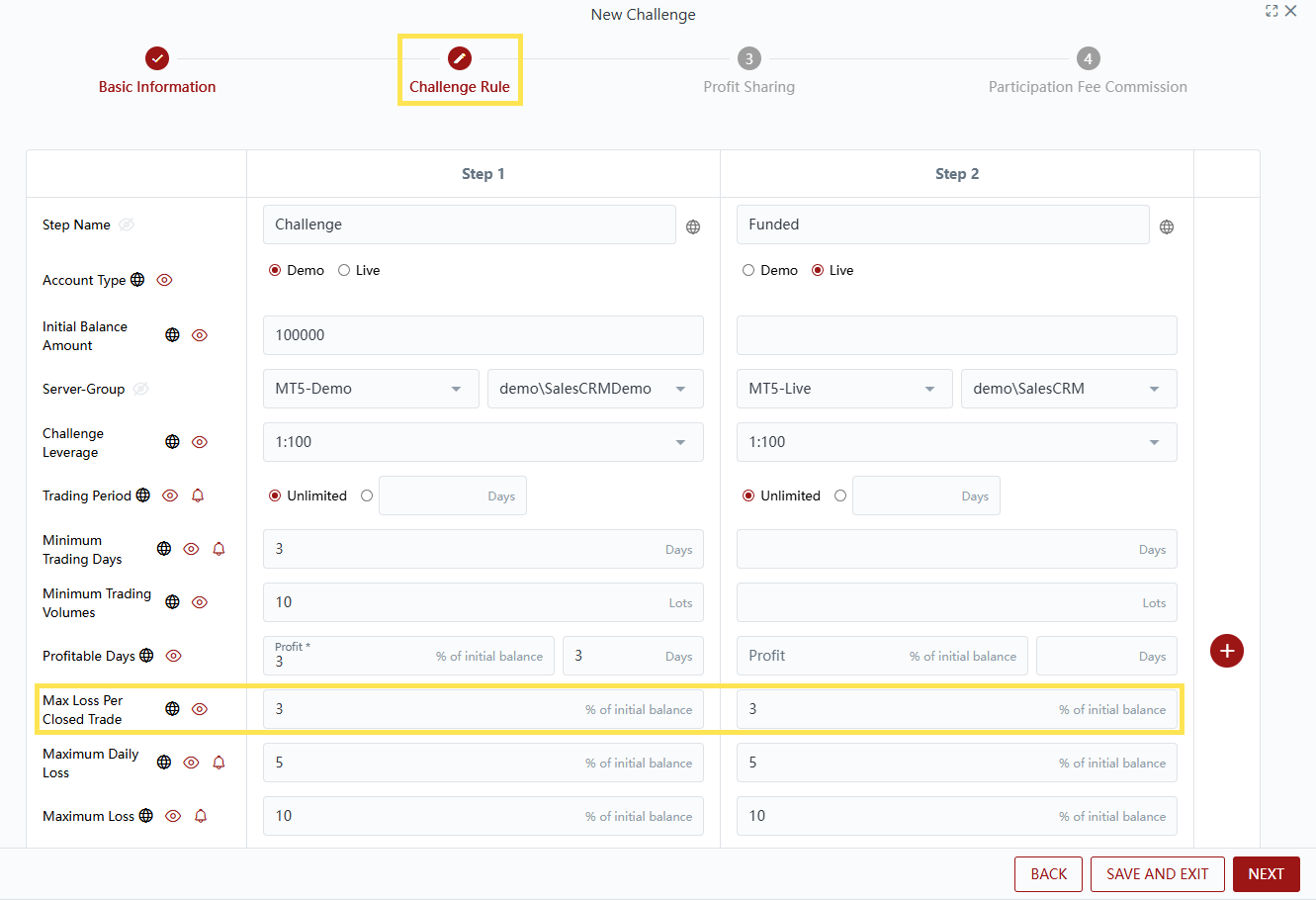
You can now introduce a per-trade loss limit to your challenge rules. Traders who exceed this threshold on any single closed trade will automatically fail the challenge, helping you manage high-risk behaviour with more granularity.
To do so, follow these steps:
{% stepper %}
{% step %}
#### Create or Edit Prop Challenge
1. Navigate to "Prop Trading" > "Challenge Settings".
2. Click "New Challenge" to create a new challenge or click the "Edit" icon to amend an existing prop challenge.
3. Note that for existing challenges marked as "Ongoing", edits are not permitted.
{% endstep %}
{% step %}
#### Configure Max Loss Per Closed Trade
1. Go to "Challenge Rules".
2. Configure "Max Loss Per Closed Trade". This is set as a percentage of the initial balance.
3. You can configure it for both demo stages and live stages.
4. For existing challenges, the "Max Loss Per Closed Trade" will be automatically set to be the same as the Maximum Daily Loss configured.
5. The system will check every 10 minutes and during daily settlement to determine if any single closed trade exceeds this threshold. If so, the trader will fail the challenge.
{% endstep %}
{% step %}
#### Save or Publish Your Challenge
1. Fill in the remaining fields.
2. Click "SAVE AND EXIT" to save your challenge as draft.
3. Click "Publish" to publish your challenge.
{% endstep %}
{% endstepper %}
When viewing a prop challenge, clients will be able to see the **"Max Loss Per Closed Trade"** criterion. They can click on it to view a detailed description. The system will automatically calculate and display the corresponding fixed amount based on the initial balance. For example, if the initial balance is $100,000 and the Max Loss Per Closed Trade is set to 3%, the system will display $3,000.
Furthermore, both you and your client will be able to view the Max Loss Per Closed Trade on the Prop Challenge Details page. Hovering over the "?" will display a tooltip explaining this criterion.
### 3) Commissions Based on Discounted Fees
IB commissions can now be calculated from discounted participation fees, allowing for more accurate payouts during promotions or when using custom pricing.
To do so, follow these steps:
{% stepper %}
{% step %}
#### Create or Edit Prop Challenge
1. Navigate to "Prop Trading" > "Challenge Settings".
2. Click "New Challenge" to create a new challenge or click the "Edit" icon to amend an existing prop challenge.
{% endstep %}
{% step %}
#### Configure Commission Payout
1. Go to "Participation Fee Commission".
2. Select "Commission = Participation Fee (After Discount) x N%" as your preferred Commission Calculation Method.
1. For example, if the original participation fee is $100 and a 20% discount is applied, the discounted fee becomes $80. If the commission rate is set at 0.1%, the commission payout will be **0.1% × $80 = $0.08**.
3. Click "SAVE AND EXIT" to save your challenge as draft or click "Publish" to publish your challenge immediately.
{% endstep %}
{% endstepper %}