> For the complete documentation index, see [llms.txt](https://reference-guide.gitbook.io/crm-version-release-notes/llms.txt). Markdown versions of documentation pages are available by appending `.md` to page URLs; this page is available as [Markdown](https://reference-guide.gitbook.io/crm-version-release-notes/v7.52.0-brokeree-social-trading-integration.md).
# V7.52.0 - Brokeree Social Trading Integration
*Learn about all the details of all our recent CRM updates here.*
**Released Date - 1 August 2025**
We’re pleased to announce the integration of Brokeree Social Trading with your CRM — a solution that enables your traders to mirror top-performing strategies in real time with transparent performance statistics and actionable insights. By making strategy replication effortless, you can drive higher trading activity while building engagement, loyalty, and long-term retention.
With this integration, you gain a unified platform where strategy discovery, subscriptions, commission distribution, and client engagement all come together. Your traders can seamlessly register as Providers or Followers, explore strategies, review analytics, and start copying trades without leaving the CRM.
The social trading module works in tandem with your CRM’s multi-tier commission engine and wallet-to-wallet transfer features, within a secure Single Sign-On (SSO) environment that simplifies operations and amplifies network growth.
{% hint style="info" %}
This integration is only compatible with MT5.
{% endhint %}
### Key Function Highlights
1. **Automated Server & Group Mapping:** The CRM auto-syncs social trading server names and Follower/Provider account groups from Brokeree — eliminating manual setup, ensuring data consistency, and getting brokers live faster.
2. **Seamless Client Experience:** Natively integrated into the CRM—not just an iframe embed — clients can register as Providers or Followers, explore strategies, review analytics, and subscribe, all in one intuitive, fully connected environment.
3. **Single Sign-On (SSO):** Enables clients to access their Provider or Follower accounts directly from the CRM, eliminating the need for separate credentials and ensuring secure, one-click access.
4. **Integrated Wallet Transfers:** Strategy Providers earn performance fees in their Brokeree wallet, which can be easily transferred into the CRM wallet or trading account. Once moved, funds can be used immediately for trading, withdrawals, or wallet-to-wallet transfers — keeping capital readily accessible.
5. **Multi-tier Commission Payouts:** You can layer multi-tier reward structures across every follower trade, turning each copied position into a powerful incentive that drives deeper engagement and accelerates network growth.
### 1) Marketplace Installation & Permission Settings
To proceed, you will need to install Brokeree Social Trading from the CRM Marketplace:
{% stepper %}
{% step %}
#### Go to the CRM Marketplace
1. Go to the **CRM Marketplace**.
2. Locate "**Brokeree Social Trading**" and click onto it.
{% endstep %}
{% step %}
#### Contact us for Installation
1. You will be redirected to the details page.
2. Click "**Contact us for installation**".
3. Fill in your details in the request form. Your email address will be automatically populated but can be amended if required.
4. Click "**Send Request**".
5. Your dedicated account manager will proceed to assist you with the installation.
{% endstep %}
{% step %}
#### Permission Settings for Admins
1. Once Brokeree Social Trading has been installed, you will need to enable the necessary permissions:
1. **Read Social Trading Integration**: Provides view-only access to social trading settings.
2. **Update Social Trading Integration**: Provides view and edit access to social trading settings.
2. Once permissions are granted, you will be able to see **Brokeree** **Social Trading** in the settings menu.
{% endstep %}
{% step %}
#### Permission Settings for Clients
1. You will also need to enable the necessary permissions for your clients through **Client** **Group Settings**:
1. **Provider**: Allows the client to register as a Provider.
2. **Follower**: Allows the client to register as a Follower.
2. You can customize these permissions by client group to cater to different client types.
{% endstep %}
{% endstepper %}
### 2) Connect Brokeree Social Trading to the CRM
To connect Brokeree Social Trading to the CRM, follow these steps:
{% stepper %}
{% step %}
#### Go to Brokeree Social Trading Settings
1. Navigate to "**Settings**" > "**Brokeree Social Trading**".
2. Click the "**Edit**" icon.
3. You will need to fill in the following:
1. Brokeree Account
2. Brokeree Password
3. API URL - You will need to request this from Brokeree.
4. Generation Key - You will need to request this from Brokeree.
4. Click the "**Save**" icon.
{% endstep %}
{% step %}
#### Trading Server & Groups
1. The Social Trading Servers and Groups configured in Brokeree will be automatically populated in the CRM.
2. The Trading Server information is retrieved based on your configuration under “**Servers**” in the Brokeree portal.
3. The Follower Account Groups and Provider Account Groups are automatically pulled from the Groups configured under “**Account Groups**” in the Brokeree portal.
4. Click the "**Edit**" icon.
5. Assign the CRM Trading Server to the corresponding Trading Platform retrieved from Brokeree. This maps the CRM Trading Server name to the one used in Brokeree.
6. Click the "**Save**" icon.
{% endstep %}
{% endstepper %}
### 3) Register as a Provider
To register as a provider, your client can follow these steps:
{% stepper %}
{% step %}
#### Navigate to Social Trading Menu
1. Login to the CRM Client Portal.
2. Go to "**Social Trading**" > "**Provider**".\
{% endstep %}
{% step %}
#### Register as a Provider
1. Click "**Register as a Provider**". \
\

2. Select the **Trading Account** via the dropdown menu.
1. The client must have an existing account on the MT5 server configured in Brokeree.
2. Only eligible accounts will be displayed in the dropdown list.
3. Accounts linked to Prop Challenges, Trading Competitions, or already registered as Providers will be excluded.
3. Fill in the **Nickname**.
4. Click "**Register**". \
\

{% endstep %}
{% step %}
#### Provider Account
1. The **Provider Account** will be created.
2. You will be able to view the Platform, Currency, Trading Account Balance, and Brokeree Wallet Balance.
3. Click the "**Login**" button to login to the Provider Account.
4. You will be logged in via Single Sign-On (SSO) and can view the Brokeree interface directly.
5. If you have multiple Provider accounts, you can switch between them using the dropdown menu.
{% endstep %}
{% endstepper %}
### 4) Register as a Follower
To register as a follower, your client can follow these steps:
{% stepper %}
{% step %}
#### Navigate to the Social Trading Menu
1. Login to the CRM Client Portal.
2. Navigate to "**Social Trading**" > "**Follower**".
{% endstep %}
{% step %}
#### Register as a Follower
1. Click "**Register as a Follower**". \
\

2. Select the **Trading Account** you wish to register as a follower.
1. The client must have an existing account on the MT5 server configured in Brokeree.
2. Only eligible accounts will appear in the dropdown list.
3. Accounts linked to Prop Challenges, Trading Competitions, or already registered as Providers will be excluded.
3. Select the **Provider** you wish to follow. The dropdown menu will display each provider’s Nickname and Social Trading Account ID.
4. Select the **Offer** from the dropdown menu. This corresponds to the Public Offers configured by the selected provider.
5. Click "**Register**". \
\

{% endstep %}
{% step %}
#### Follower Account
1. The **Follower Account** will be created.
2. You will be able to view the Platform, Currency and Trading Account Balance.
3. Click the "**Login**" button to login to the Follower Account.
4. You will be logged in via **Single Sign-On (SSO)** and can view the Brokeree interface directly.
5. If you have multiple Follower accounts, you can switch between them using the dropdown menu.
{% endstep %}
{% endstepper %}
### 5) Accounts Dashboard
#### A) System Tags
1. In both the Client Portal and Backoffice Portal, the accounts list will display system tags indicating whether an account is a **Provider** or a **Follower**.
1. Client Portal
2. Back Office Portal
2. For the Back Office trading accounts report, you can also filter based on these account types for easier tracking and management.
#### B) Changing Trading Platform Groups
1. When changing the trading group for a Social Trading account, the CRM will verify whether the group is configured on Brokeree.
2. If the group is not configured for Social Trading, an error message will appear to inform you that the group does not support Social Trading accounts.
#### C) Sync Social Trading Accounts with the CRM
1. If you have created Social Trading accounts via Brokeree's platform, you can synchronize them with the CRM.
2. Navigate to “**Trading Accounts**”.
3. Click the “**…**” icon and select “**Sync Social Trading Accounts**”.
4. The accounts will be synchronized and displayed in the CRM.
### 6) Integrated Wallet Transfers
Providers receive performance fees in their Brokeree wallet. From the CRM, these funds can be transferred to a provider’s CRM wallet or trading account. Once the funds are in the CRM system, they can be used for trading, wallet-to-wallet transfers, or withdrawn, ensuring that capital earned through social trading remains fully accessible and manageable.
#### A) Transfer Settings
Before providers can transfer funds, you will need to configure the transfer settings. Follow these steps:
{% stepper %}
{% step %}
#### Navigate to Transfer Settings
1. Go to "**Settings**".
2. Select "**Transaction Settings**" > "**Transfer Settings**".
3. You will see a new section called **Social Trading Wallet Transfer**.
{% endstep %}
{% step %}
#### Configure Transfer Settings
1. Click the "**Edit**" icon.
2. The **Source Account** is fixed as the Social Trading Wallet and cannot be changed.
3. Select "**Wallet**" and/or "**Trading Account"** for the **Target Account** to decide where providers can transfer funds.
4. Click the "**Save**" icon to apply the settings.
{% endstep %}
{% step %}
#### Application
1. Login to the CRM Client Portal.
2. Go to "**Social Trading**" > "**Provider**"**.**
3. You will see your **Brokeree wallet balance** displayed in the CRM.
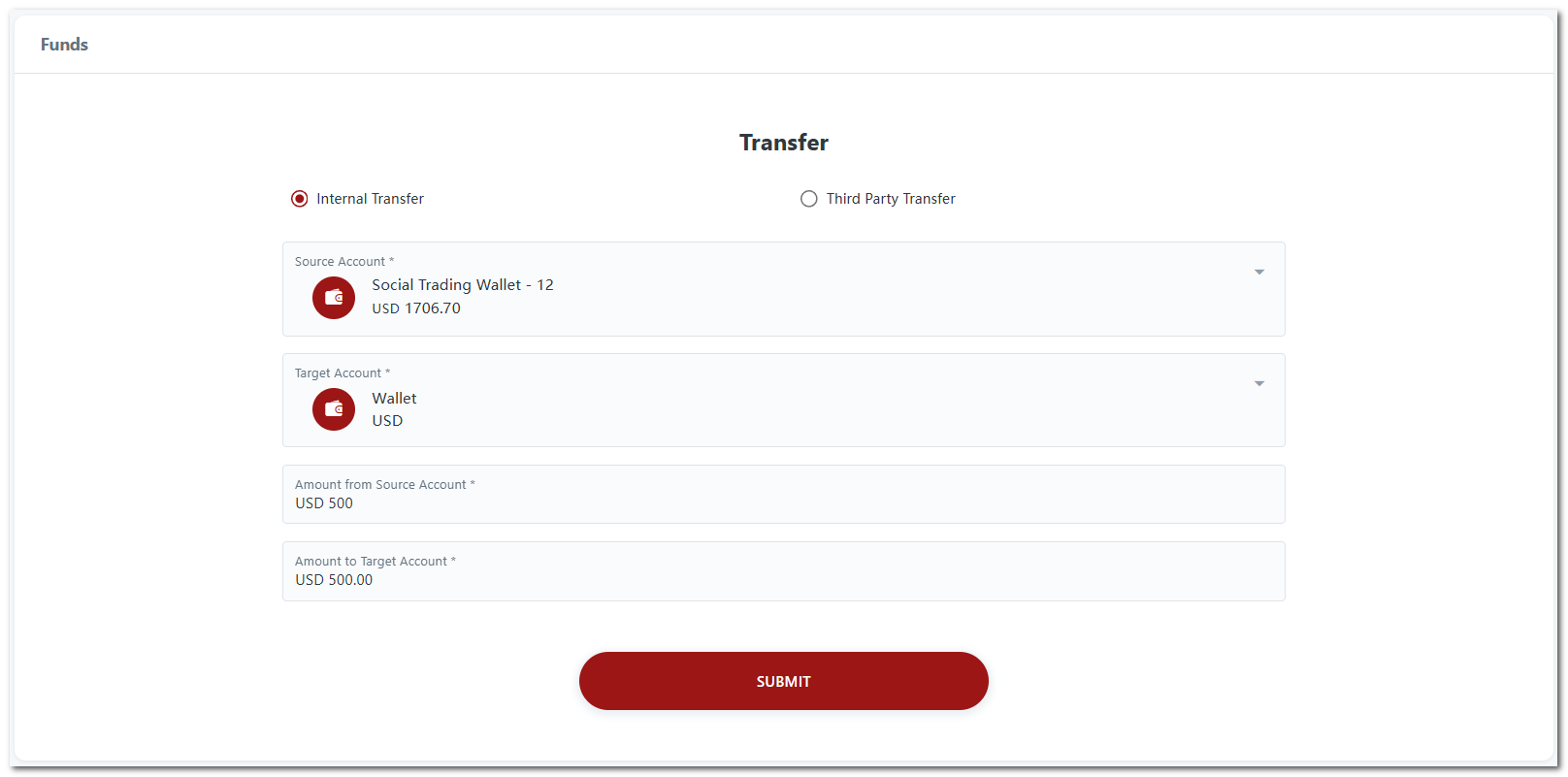
4. To withdraw performance fees, click the "**Transfer**" icon.
5. You will be redirected to the Transfer page.\
**Note:** Transfers from the Brokeree wallet are limited to **internal transfers** only.
6. The **Source Account** will be automatically set to "**Social Trading Wallet**".
* For third-party transfers, the "**Social Trading Wallet**" option will **not** appear in the source account dropdown.
7. Complete the transfer form and click "**Submit**".
* The Target Account options will depend on your configuration — whether you allow transfers to the CRM Wallet and/or Trading Accounts.
8. Once submitted, the transfer request can be reviewed in the Backoffice Portal. Approve or reject the request as appropriate.\
\

{% endstep %}
{% endstepper %}