> For the complete documentation index, see [llms.txt](https://reference-guide.gitbook.io/crm-back-office-user-guide-full/llms.txt). Markdown versions of documentation pages are available by appending `.md` to page URLs; this page is available as [Markdown](https://reference-guide.gitbook.io/crm-back-office-user-guide-full/crm-back-office-user-guide-full-cn/17.-settings/client-portal-transaction-settings/match2pay-withdrawal/securing-match2pay-withdrawal-process.md).
# Securing Match2Pay Withdrawal Process
To guarantee a secure Match2Pay withdrawal process, we have implemented security checks to verify withdrawal requests before processing. These security measures include:
**A) Two Levels of Approval**
* Each withdrawal request will go through mandatory two levels of approval.
* This additional layer of verification helps ensure that only authorized and legitimate requests are processed, reducing the risk of unauthorized withdrawals.
* This is a mandatory step before you can setup Match2Pay as a withdrawal method for your clients.
**B) 2FA Setup**
* You can enable mandatory 2FA for your clients, requiring them to input a 2FA code before processing any operations.
* This is an optional step, but it is highly recommended to enhance fund security.
* For further information on how to utilize this function, please refer to this link: [Two-Factor Authentication Setting](/crm-back-office-user-guide-full/crm-back-office-user-guide-full-cn/17.-settings/client-portal-security-settings/two-factor-authentication-setting.md)
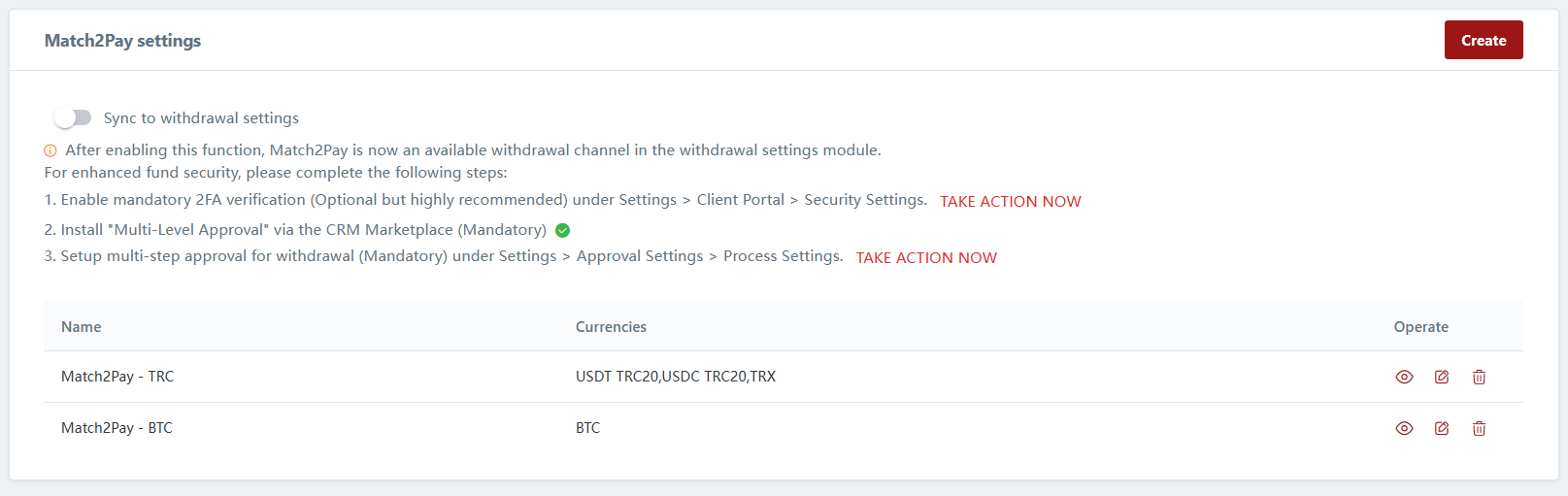
Without completing the security checklist, you will not be able to enable Match2Pay as a withdrawal method. A popup notice will appear to inform you to complete the security checklist.
To secure your Match2Pay withdrawal process, follow these steps:
{% tabs %}
{% tab title="Step 1" %}
To turn on 2FA, follow these steps:
1. Navigate to "Security Settings" and enable the mandatory 2FA verification option.
2. Alternatively, you can click on "Take Action Now" to be redirected to the respective page. For more details, please refer to this link: [Two-Factor Authentication Setting](/crm-back-office-user-guide-full/crm-back-office-user-guide-full-cn/17.-settings/client-portal-security-settings/two-factor-authentication-setting.md)
{% endtab %}
{% tab title="Step 2" %}
To install "Multi-Level Approval", please refer to this link: [Multi-Level Approval](/crm-back-office-user-guide-full/crm-back-office-user-guide-full-cn/17.-settings/back-office-portal-approval-settings/multi-level-approval.md)
Upon successful completion of the installation, a "tick" symbol will be displayed beside the corresponding checklist item.
{% endtab %}
{% tab title="Step 3" %}
To setup Multi-Level Approval, follow these steps:
1. Navigate to Approval Settings > Process Settings.
2. Alternatively, click "Take Action Now" to be redirected to the settings page.
3. Locate "Withdrawal" and click the Edit icon next to it.
4. For Match2Pay withdrawal to be enabled, you will need a minimum of 2 levels of approvers:
* First level of approver: This is for you to verify the client's wallet address. Upon approval, the funds will be deducted from the client's trading account, and instructions will be sent to Match2Pay for processing the funds transfer.
* Second level of approver: This is for you to verify the payment status of the withdrawal and click "Approve" if successful.
5. To add a level of approver, click the "+" icon.
6. Select the party responsible for each approval level by clicking the box.
7. You can choose individual users or roles. Click "Confirm" once selected.
8. For the first level of approval, you can select from the two options:
* Manual - Requires a party to manually approve the request.
* Automatic - The first level will be automatically approved, and funds will be deducted from the trading account. Instructions will be sent to Match2Pay for processing the transfer automatically.
Note: We strongly encourage keeping this as a manual process to ensure verification of wallet details before Match2Pay processes the transfer.
To make changes, click onto the "Settings" icon. \

9. Select the approval method and click "Confirm". \

10. Once you finish setting up the approval process, click "Publish."
11. Upon completion, you will see a "tick" beside the corresponding checklist, indicating that this step has been successfully completed.
{% endtab %}
{% tab title="Step 4" %}
After completing all the required security checks, you will gain the ability to sync Match2Pay as a withdrawal method.
However, if you have completed all the mandatory security checks except enabling the optional 2FA verification, you will see a "Notice" icon beside Security Settings.
This icon serves as a reminder that you have the option to further enhance fund security by enabling the 2FA function. We recommend considering this additional security measure to ensure the utmost protection for your funds and account.
{% endtab %}
{% endtabs %}