# Pop-Up Notifications

### <mark style="color:red;">1. Overview</mark>

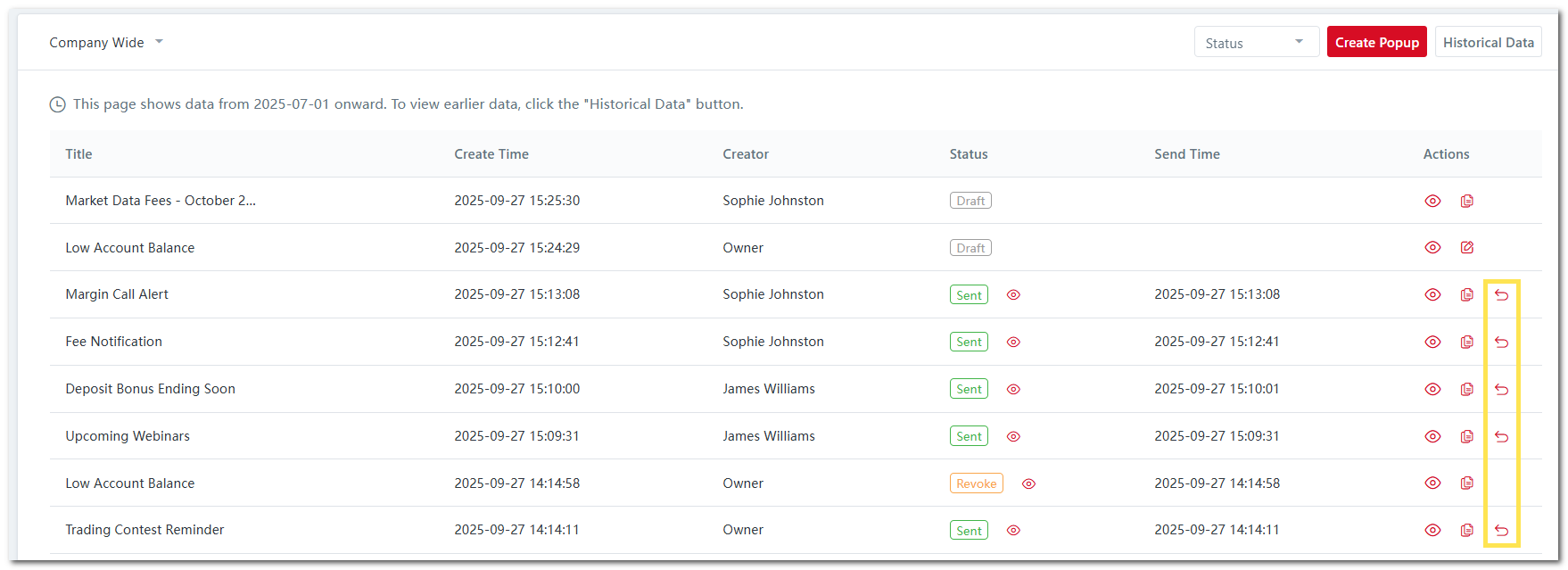
You can access a **comprehensive view of all pop-up notifications** sent to clients. For each notification, the following details are available:

* **Title:** Shows the notification's subject line, providing a brief summary of its content.
* **Create Time:** Timestamp of when the notification was created.
* **Creator:** The user who created the notification.
* **Status:** Indicates the current status of the notification (e.g., sent, pending).
* **Send Time:** Timestamp of when the notification was actually sent to the recipient(s).

<figure><img src="https://1412218885-files.gitbook.io/~/files/v0/b/gitbook-x-prod.appspot.com/o/spaces%2FZjte3ihj30mTFvqCasyX%2Fuploads%2FyxbVcfczsaNDFgWCRVSW%2Fimage.png?alt=media&#x26;token=22686126-4606-4a6a-a3b4-62044a322f9d" alt=""><figcaption></figcaption></figure>

### <mark style="color:red;">2. Functions</mark>

You can also perform the following functions:&#x20;

<details>

<summary>Permissions Dropdown List </summary>

1. You have the flexibility to customize pop-up notification permission rights for backoffice users. Permissions can be tailored so that some users view all company emails, while others only access emails created by themselves or their team: [role-management](https://reference-guide.gitbook.io/crm-back-office-user-guide-full/crm-back-office-user-guide-full-cn/17.-settings/back-office-portal-user-settings/role-management "mention")
2. You can select different categories to filter and view specific pop-up notifications:
   * **View Own Data**: Shows only pop-up notifications you created.
   * **Direct Downlines**: Displays pop-up notifications created by your direct team members.
   * **All Downlines**: Displays pop-up notifications created by both your direct and indirect team members.
   * **Same Role**: Shows pop-up notifications created by other backoffice users with the same role as you.
   * **Company** **Wide**: Shows pop-up notifications created by any member of the company.
3. To apply a filter, select the desired option from the dropdown list.<br>

   <figure><img src="https://1412218885-files.gitbook.io/~/files/v0/b/gitbook-x-prod.appspot.com/o/spaces%2FZjte3ihj30mTFvqCasyX%2Fuploads%2Fn95OIcaNQfP6CQtKaoq3%2Fimage.png?alt=media&#x26;token=c715a0d3-6166-40b8-a4f1-27e3344a52e6" alt=""><figcaption></figcaption></figure>

</details>

<details>

<summary>Status Filter</summary>

1. You can also filter notifications based on their status. The available options are:
   * **Draft**: Pop-up notifications that are being composed or edited but not yet sent.
   * **Sent**: Pop-up notifications that were successfully sent to all recipients.
   * **Revoke**: Pop-up notifications that were previously sent but revoked.&#x20;
2. To filter by status, select the desired option from the dropdown list.<br>

   <figure><img src="https://1412218885-files.gitbook.io/~/files/v0/b/gitbook-x-prod.appspot.com/o/spaces%2FZjte3ihj30mTFvqCasyX%2Fuploads%2F36b9p0u8VSspwLN58LbU%2Fimage.png?alt=media&#x26;token=a40eaaba-2266-4653-939c-3e564ca35d4f" alt=""><figcaption></figcaption></figure>

</details>

<details>

<summary>Preview Pop-Up</summary>

1. You can preview the pop-up notification by clicking the "**Preview**" icon.<br>

   <figure><img src="https://1412218885-files.gitbook.io/~/files/v0/b/gitbook-x-prod.appspot.com/o/spaces%2FZjte3ihj30mTFvqCasyX%2Fuploads%2FivRiCoevV0EynUXkpNVX%2Fimage.png?alt=media&#x26;token=205c1555-ccfd-4c9b-a970-95cb0e03d8d6" alt=""><figcaption></figcaption></figure>
2. The pop-up notification will be displayed.\
   \
   ![](https://1412218885-files.gitbook.io/~/files/v0/b/gitbook-x-prod.appspot.com/o/spaces%2FZjte3ihj30mTFvqCasyX%2Fuploads%2FHqbV8EoVLxSfp6E7lDRH%2Fimage.png?alt=media\&token=0e9c400b-a145-4062-bd1a-00bb02c76ec7)<br>
3. Click "**Learn More**" to view the full details. <br>

   <figure><img src="https://1412218885-files.gitbook.io/~/files/v0/b/gitbook-x-prod.appspot.com/o/spaces%2FZjte3ihj30mTFvqCasyX%2Fuploads%2FObm6hOPyPUGlkxrv5kp3%2Fimage.png?alt=media&#x26;token=15748c13-e490-4653-8c57-65300f5a0b0c" alt=""><figcaption></figcaption></figure>

</details>

<details>

<summary>Edit Pop-Up Notifications</summary>

1. You can edit pop-up notification by clicking the "**Edit**" icon.
2. Only pop-up notifications in the "**Draft**" status can be edited.&#x20;
3. You can only edit email drafts created by you.&#x20;
4. For drafts not created by you, the "**Edit**" icon will not be available.<br>

   <figure><img src="https://1412218885-files.gitbook.io/~/files/v0/b/gitbook-x-prod.appspot.com/o/spaces%2FZjte3ihj30mTFvqCasyX%2Fuploads%2F8yatoQFrLMYc53GfodL3%2Fimage.png?alt=media&#x26;token=50105c51-eb9c-4cc7-87a3-1ab096c711dd" alt=""><figcaption></figcaption></figure>
5. Make changes to the content and click "**Send**" when ready. For more details, see this section:  [send-pop-up-notifications](https://reference-guide.gitbook.io/crm-back-office-user-guide-full/crm-back-office-user-guide-full-cn/11.-notify/pop-up-notifications/send-pop-up-notifications "mention")<br>

   <figure><img src="https://1412218885-files.gitbook.io/~/files/v0/b/gitbook-x-prod.appspot.com/o/spaces%2FZjte3ihj30mTFvqCasyX%2Fuploads%2FG1qFW2paK4kEQRnzGQpg%2Fimage.png?alt=media&#x26;token=2c552b4e-d931-46c8-b975-de4b9250787b" alt=""><figcaption></figcaption></figure>

</details>

<details>

<summary>Duplicate Pop-Up Notifications</summary>

1. You can duplicate previously sent pop-up notifications to conveniently resend similar content to clients.
2. Click the "**Duplicate**" icon to create a copy of the email.
3. The **Duplicate** function is not available for your own draft emails. However, you can duplicate drafts created by other users.<br>

   <figure><img src="https://1412218885-files.gitbook.io/~/files/v0/b/gitbook-x-prod.appspot.com/o/spaces%2FZjte3ihj30mTFvqCasyX%2Fuploads%2FD4PD3z9LMIZaxsJ1M1fZ%2Fimage.png?alt=media&#x26;token=ca5243fb-eb57-4158-96a0-d25b7602f5ac" alt=""><figcaption></figcaption></figure>
4. After duplicating, you can amend the content before clicking "**Send**". For more details on composing content, see this section: [send-pop-up-notifications](https://reference-guide.gitbook.io/crm-back-office-user-guide-full/crm-back-office-user-guide-full-cn/11.-notify/pop-up-notifications/send-pop-up-notifications "mention")<br>

   <figure><img src="https://1412218885-files.gitbook.io/~/files/v0/b/gitbook-x-prod.appspot.com/o/spaces%2FZjte3ihj30mTFvqCasyX%2Fuploads%2Fbdlmz0GRyvwdxrOvVk8e%2Fimage.png?alt=media&#x26;token=429ee7bd-6dc5-4133-bae8-9ce156ddc4c3" alt=""><figcaption></figcaption></figure>

</details>

<details>

<summary>Revoke Pop-Up Notifications</summary>

1. You can revoke popup notifications that have already been sent, if you need to make changes or corrections.
2. Click the **“Revoke”** icon.
3. Only notifications with the status **“Sent”** can be revoked.<br>

   <figure><img src="https://1412218885-files.gitbook.io/~/files/v0/b/gitbook-x-prod.appspot.com/o/spaces%2FZjte3ihj30mTFvqCasyX%2Fuploads%2F1sn6VbHtcsUmflZjElCT%2Fimage.png?alt=media&#x26;token=82739a58-17d8-4006-a8e1-de2210fe8a31" alt=""><figcaption></figcaption></figure>
4. A confirmation message will appear, informing you that revoking will delete the notification from your clients’ view. Click **“Confirm”** to proceed.\
   \
   ![](https://1412218885-files.gitbook.io/~/files/v0/b/gitbook-x-prod.appspot.com/o/spaces%2FZjte3ihj30mTFvqCasyX%2Fuploads%2FvGNS6bC3mlTS3iwc9a9c%2Fimage.png?alt=media\&token=6ab4046f-ecf4-434f-ae6e-f42b1ce4a267)
5. For more information regarding revocation policies, refer to: [#id-3.-revocation-policies](#id-3.-revocation-policies "mention")

</details>

<details>

<summary>View Status Details</summary>

1. You can check the sent and read status of all recipients by clicking the **“View”** icon.<br>

   <figure><img src="https://1412218885-files.gitbook.io/~/files/v0/b/gitbook-x-prod.appspot.com/o/spaces%2FZjte3ihj30mTFvqCasyX%2Fuploads%2F9bI6RcylatD7NGgw1yuO%2Fimage.png?alt=media&#x26;token=027a846a-e38e-4a19-b09d-c7745b53e7c3" alt=""><figcaption></figcaption></figure>
2. This function is applicable to pop-up notifications with the "**Sent**" or "**Revoke**" status only.&#x20;
3. You will be able to:&#x20;
   * See the status of all recipients<br>

     <figure><img src="https://1412218885-files.gitbook.io/~/files/v0/b/gitbook-x-prod.appspot.com/o/spaces%2FZjte3ihj30mTFvqCasyX%2Fuploads%2FTLxsfZKNpUBsYPGt21nu%2Fimage.png?alt=media&#x26;token=a261a657-3e44-4e6d-8b6e-b2ec8ef832b2" alt=""><figcaption></figcaption></figure>
   * **Filter** by read/unread status
   * **Search** for specific recipients
   * **Refresh** the data to view the latest status<br>

     <figure><img src="https://1412218885-files.gitbook.io/~/files/v0/b/gitbook-x-prod.appspot.com/o/spaces%2FZjte3ihj30mTFvqCasyX%2Fuploads%2FPHdxImZVcJgLPlCg9KwW%2Fimage.png?alt=media&#x26;token=2e6bd6db-da14-4e6f-8e51-c8fc870e650b" alt=""><figcaption></figcaption></figure>

</details>

<details>

<summary>Batch Delete Pop-Up Notification</summary>

1. You can batch delete pop-up notification records.

2. You can only delete notifications you created, and the "**Delete**" button is available only when viewing the "**View Own Data**" report.

3. Select the pop-up notifications you want to delete and click "**Delete**" icon.<br>

   <figure><img src="https://1412218885-files.gitbook.io/~/files/v0/b/gitbook-x-prod.appspot.com/o/spaces%2FZjte3ihj30mTFvqCasyX%2Fuploads%2FzqNF2dYJcLxljxzrVEOS%2Fimage.png?alt=media&#x26;token=4cfc4836-d129-49c5-840a-09cb557af411" alt=""><figcaption></figcaption></figure>

4. A confirmation popup will appear. Click "**Confirm**" to proceed.\
   \
   ![](https://1412218885-files.gitbook.io/~/files/v0/b/gitbook-x-prod.appspot.com/o/spaces%2FZjte3ihj30mTFvqCasyX%2Fuploads%2Fp6WE0gyB7hm8BMQ8PTBY%2Fimage.png?alt=media\&token=18bcad74-cb4c-49ea-b3b3-a3c073f363b4)<br>

5. The selected records will then be deleted.

</details>

### <mark style="color:red;">3. Revocation Policies</mark>

1. Pop-up notifications can only be reversed within 2 hours after it is sent out.
2. Reversed notifications can be previewed, duplicated or deleted.
3. Different scenarios during reversal of pop-up notifications:

<table><thead><tr><th width="172"></th><th width="176">Client Status</th><th width="198">Client Status</th><th>Client Status</th></tr></thead><tbody><tr><td>Logged In</td><td>No</td><td>Yes</td><td>Yes</td></tr><tr><td>Viewed Pop-up Notification</td><td>No</td><td>No</td><td>Yes</td></tr><tr><td>Outcome</td><td><p>No Pop-Up Notification shown upon logging in.</p><p>No records shown on notification page.</p></td><td><p>Pop-Up Notification will disappear upon refreshing the page.</p><p>Clicking “Learn More” will display an error message informing client that the message has been reversed.</p><p></p><p>No records shown on notification page.</p></td><td><p>Upon closing the Pop-Up notification and refreshing the page, the notification record will no longer be displayed.</p><p></p><p>Upon closing the Pop-Up notification and clicking it again, an error message will display informing client that the message has been reversed.</p></td></tr></tbody></table>
